Installation
Spirit Vale Overlay ships as a portable Windows x64 app. There is no installer: you install Npcap once, then extract a ZIP and run the executable.
Latest portable ZIP from GitHub Releases.
Requirements
- 64-bit Windows 10 version 1809 or newer, or Windows 11.
- Npcap — see the pre-install step below.
- Microsoft Edge WebView2 Runtime, already present on most up-to-date Windows installations.
The portable release bundles everything else it needs, including its Bun runtime. There is nothing else to install.
Pre-install
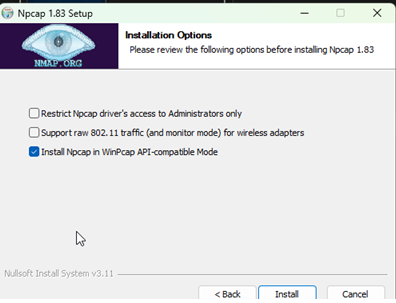
Before installing Spirit Vale Overlay, download and install Npcap from npcap.com/#download. Select Install Npcap in WinPcap API-compatible Mode and leave Restrict Npcap driver’s access to Administrators only unchecked.
Portable release
- Download the latest
spirit-vale-overlay-windows-x64-v*.zipfrom GitHub Releases. - Extract the complete ZIP. It contains one versioned folder, such as
spirit-vale-overlay-windows-x64-v0.10.9. - Open that folder and run
spirit-vale-overlay-win_x64.exe.
The portable app supports Windows x64 and, by default, keeps its settings, logs, and writable runtime data inside the extracted folder.
Where your data is stored
To store data in Windows AppData instead:
- Close Spirit Vale Overlay completely.
- Delete
.spirit-vale-portablefrom the extracted application folder. - Restart the app. New data will be stored under
%APPDATA%\Spirit Vale Overlay\data.
Deleting the marker does not move existing portable data. To keep your current settings, open Settings > Manage Settings before deleting it and export them, then import them after restarting. You can also import directly from the old extracted folder’s data directory.
If something goes wrong
If the app does not start, shows a blank window, or cannot capture game traffic, see the Windows troubleshooting guide. Using a VPN or network optimizer such as ExitLag needs extra configuration.
You can also ask for help in the Spirit Vale Overlay Discord.